


TV Cast: Chromecast Smart View
4.41.97K Reviews
App Specs
- Version
- 5.9.3
- Updated On
- License
- Free
- Downloads
- 10,000,000+
- Developer
- TV Master - Smart TV Remote Control
- Categories
- House & Home
- Platform
- Android, iOS
Screenshots

 Analysis by AppCompare
I judge a screen-casting app less by its big-screen promise than by how it behaves when someone is tired, unfamiliar with the setup, or trying to share something quickly. TV Cast: Anycast in smart view is a free House & Home app from TV Master - Smart TV Remote Control, aimed at sending phone content to a smart TV. Its appeal is straightforward: move photos, videos, or a web page to a larger display without reaching for a cable. The experience is most useful when the phone and TV cooperate, but that dependence also shapes who will find it comfortable to use.
Making the first connection less stressful
The practical question for a new user is not simply whether casting is possible, but what to do when the TV does not appear. The usual first check is that the phone and television are on the same Wi-Fi network; a guest network or a different router connection can get in the way. I would check that before repeatedly tapping through the app. If a household member is helping someone else, it also makes sense to do the initial pairing together and leave the phone and TV on the familiar network for next time.
That small bit of preparation matters for people who find troubleshooting tiring or confusing. A dependable starting routine—open the app, confirm the network, choose what to share, then select the TV—can make an occasional casting task feel manageable. It is not a replacement for a TV’s own remote or built-in apps, though. I see it as a way to send selected material from a phone, not as a guarantee that every television or every streaming service will behave identically.
Getting Started with TV Cast
First things first, setting up TV Cast: Anycast in smart view is a breeze. You don't need to be a tech wizard to get things going. Just download the app on your phone, make sure your smart TV and phone are connected to the same Wi-Fi network, and you’re good to go. That’s it! No tangled cords or complex configurations.
User Interface and Experience
The user interface is super intuitive. You’re greeted with a clean layout that makes navigation straightforward. Whether you’re a first-time user or a seasoned streamer, you’ll find everything you need right at your fingertips. The app is designed to make the streaming experience seamless, and I have to say, it delivers on that promise.
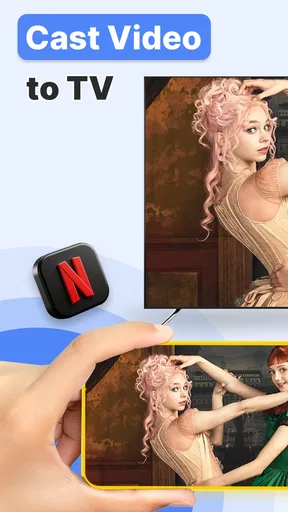
One of the things I really appreciated was the quick access to streaming platforms. You can easily connect to Netflix, YouTube, or any local media you have stored on your phone. The app supports a wide range of formats, so you won’t have to worry about compatibility issues.
Readability, attention, and control
On a small phone screen, a clear interface can reduce the effort of finding the next step, but casting still asks you to watch for connection choices and respond to prompts. Someone with low vision may prefer to increase the phone’s system text size or display magnification before starting, then try a simple photo or short clip first. That is a sensible way to see whether labels remain comfortable to read without committing to a longer viewing session.
Worth Reading Before You Choose

Flipboard Shows What News Apps Must Do Beyond the Feed

Switching to Android Auto Means Rethinking Your Driving Routine

Google Calendar Makes a Crowded Week Easier to Manage

Ludo King Makes the Most of the Minutes Between Plans

Baby Panda World Brings Quick Play to Modern Phones, but Its Game Library Feels Busy

ESPN’s Live Game View Makes Following Close Games Easier
For users who have limited dexterity, the most helpful approach is to reduce the number of actions needed during the viewing itself. Pick the photo album or video first, get the television connection working, and keep the phone within easy reach. A family member can help with the initial setup, while the person watching can decide what to show. This app can support that kind of shared routine, although it should not be treated as a dedicated accessibility remote with specially verified controls.
Performance and Streaming Quality
Now, let’s talk about what really matters: the streaming quality. I was pleasantly surprised by how smooth and lag-free the experience was. There’s nothing worse than buffering when you're in the middle of a movie, right? With TV Cast: Anycast in smart view, the connection was stable, and I didn’t encounter any noticeable delays.
The picture and sound quality were on point too. Whether I was watching a high-octane action flick or a serene nature documentary, the visuals were crisp and the audio was clear. It truly felt like I was watching directly from my TV’s native apps.
When the room and routine matter
A larger screen can make a real difference for a household viewing photos together, following a web page from across the room, or letting someone sit farther from a phone display. For example, after a family gathering, one person can choose a few pictures on their phone and show them on the living-room television while everyone stays seated. That is a more comfortable shared experience than passing one phone around, and it avoids needing to send the pictures to every person first.
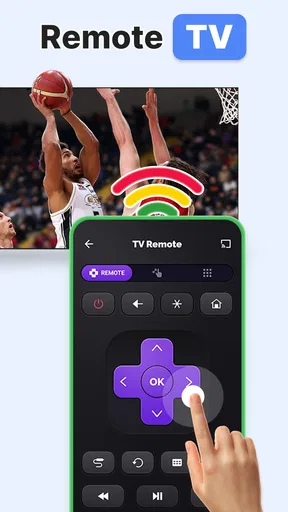
There are trade-offs. Casting depends on a usable wireless connection and a compatible television, so it is less suitable in places where network access is restricted, unreliable, or controlled by someone else. It is also not the best choice if you need a TV remote replacement, want to avoid phone-based controls altogether, or need a setup that works independently of Wi-Fi. In those cases, the television’s own controls or a wired connection may be the simpler option.
Features Worth Highlighting
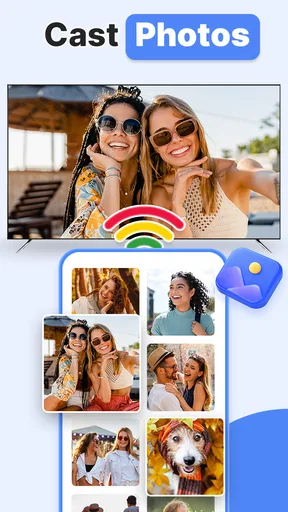
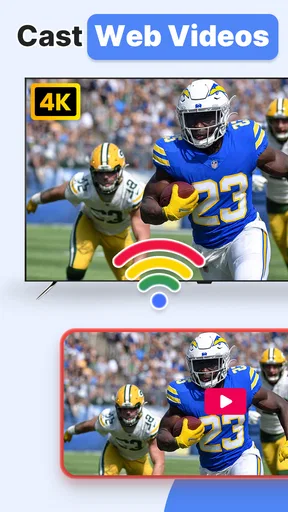
One feature that stood out to me was the ability to cast not just videos, but also photos and even web pages. This makes it a versatile tool for presentations or just sharing memories with friends and family on a bigger screen.
Plus, the app supports multiple devices. So, if you have a household with different preferences, everyone can use their own device without any hassle. It’s a small touch, but it makes a big difference in user convenience.
Useful habits for sharing content
For a presentation or a casual show-and-tell, I would open the material on the phone before connecting so I am not searching through folders with an audience waiting. If I am sharing a web page, I would also check that it is the page I intend to display and avoid leaving unrelated tabs or personal details visible. These are simple habits, but they make phone-to-TV sharing less awkward and help keep the focus on the content.
When a clip matters, I would test a short section before settling in for a full viewing. That quick check helps separate a weak network connection from a content-specific problem, and it avoids discovering an issue halfway through. For long sessions, the phone’s battery and the fact that it remains the control point are worth considering; keeping it charged and nearby is more practical than expecting the TV to take over the whole job.
How it compares with familiar options
Compared with opening a service directly on a smart TV, casting is convenient when the item is already on your phone or when you want to show personal media and web pages. The television’s native apps are usually the more direct route when you are settling down to watch a streaming service and do not need the phone as an intermediary. A wired connection can be more dependable where Wi-Fi is poor, while built-in casting tools may be preferable if they already work well with your devices. I would choose this app for flexible phone-led sharing, not assume it must replace every other way of watching.
Its place in the category is reflected in its broad reach: it has an average rating of 4.4 from around 152,000 ratings and more than 10 million installs. That makes it a familiar option for many people, but popularity cannot guarantee a smooth match with a particular TV, router, or viewing habit. I would treat a first test as the best evidence for your own setup rather than relying on other households’ experiences.
Room for Improvement
While TV Cast: Anycast in smart view is impressive, there’s always room for a few tweaks. For instance, adding more detailed instructions or tutorials for first-time users could be beneficial. Also, while the app runs smoothly on most devices, there might be occasional hiccups on older phone models.
Costs, compatibility, and who should pass
The app is free to download, with optional in-app purchases listed at $3.99 to $19.99 per item. I would start with the free experience and decide whether the available functions meet my needs before spending anything. It is rated Everyone, runs on Android 5.0 or later, and its current version is 5.7.2. Those details help frame the choice, but the TV and network still need to suit the casting task.
I would recommend trying it if you often share phone photos, local media, or browser content on a larger screen and are comfortable using your phone as the controller. I would skip it if you expect a universal remote, need casting to work without a shared network, or find switching between phone and TV controls frustrating. If a cast target does not show up, checking the shared Wi-Fi connection is a more useful first move than assuming the media itself is at fault.
Final Thoughts
Overall, TV Cast: Anycast in smart view is a fantastic app for anyone looking to enhance their streaming experience. It’s easy to set up, user-friendly, and offers excellent streaming quality. Whether you’re a binge-watcher or someone who just wants to mirror their phone occasionally, this app has got you covered.
If you’re ready to cut the cord and make the most of your smart TV, give TV Cast: Anycast in smart view a try. You won’t be disappointed!
My more measured recommendation is to think of it as a handy bridge between a phone and a television, especially for shared photos and quick demonstrations, rather than as a complete replacement for built-in TV apps. That distinction makes the decision clearer: it can make selected content easier to enjoy together, while the best option for regular streaming or a difficult network may still be the television’s own interface or another connection method.
Pros
- Easy setup with clear instructions.
- Supports multiple streaming devices.
- High-quality video casting.
- User-friendly interface design.
- Regular updates enhance performance.
Cons
- Limited free features available.
- Ads can be intrusive at times.
- Occasional connectivity issues.
- No offline viewing option.
- Some streaming services not supported.
FAQs for TV Cast: Chromecast Smart View
What devices are compatible with TV Cast: Anycast in Smart View?
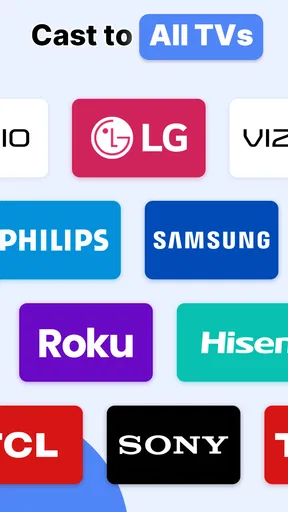
TV Cast: Anycast in Smart View is compatible with a wide range of devices, including Android and iOS smartphones and tablets. It supports casting to various smart TVs, Chromecast, and other DLNA-enabled devices. Before downloading, ensure that your TV or streaming device is compatible with the app to avoid any connectivity issues.
How do I set up TV Cast: Anycast in Smart View for the first time?
Setting up TV Cast: Anycast in Smart View is straightforward. First, ensure your smartphone and TV are connected to the same Wi-Fi network. Open the app, select your TV from the list of available devices, and follow the on-screen instructions to connect. Once connected, you can start casting media from your phone to your TV.
Does TV Cast: Anycast in Smart View support all video formats?
While TV Cast: Anycast in Smart View supports a wide range of video formats, there might be some limitations depending on the device you're casting to. Common formats like MP4, AVI, and MKV are generally supported. Check the app’s documentation or your device’s compatibility to ensure a smooth streaming experience.
Are there any in-app purchases or subscriptions required for TV Cast: Anycast in Smart View?
TV Cast: Anycast in Smart View offers free basic features, but there may be in-app purchases or subscription options available for advanced features such as ad-free usage, higher resolution streaming, or additional format support. Review the app store listing for detailed pricing information before downloading.
What should I do if I experience connectivity issues with TV Cast: Anycast in Smart View?
If you encounter connectivity issues, first ensure both your phone and TV are on the same Wi-Fi network. Restart both devices and try reconnecting. Check for any available updates for the app or your device. If problems persist, consult the app’s support section or contact customer support for assistance.


